Bookings on your own site · Guide
The booking calendar on your own website
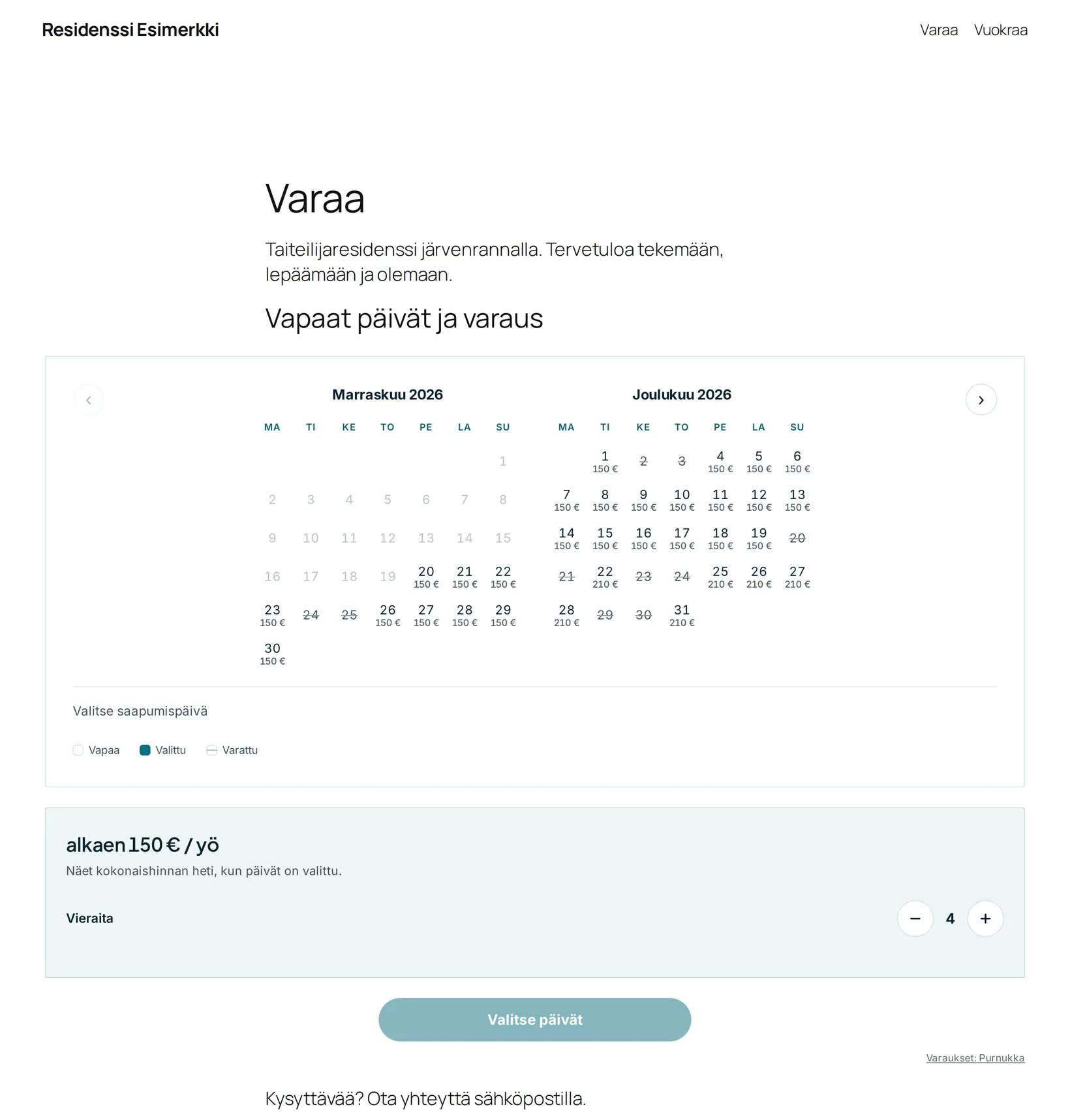
Keep your current website. Add the Purnukka booking calendar to it, and guests see free dates and prices, book and pay right on your site. It takes about five minutes.
Before you start
- Your property is published on Purnukka and online payments (Stripe) are connected.
- Your website uses https (a padlock in the address bar). Almost every WordPress, Wix and Squarespace site does.
- You can edit your website.
-
Open the embed settings in Hub
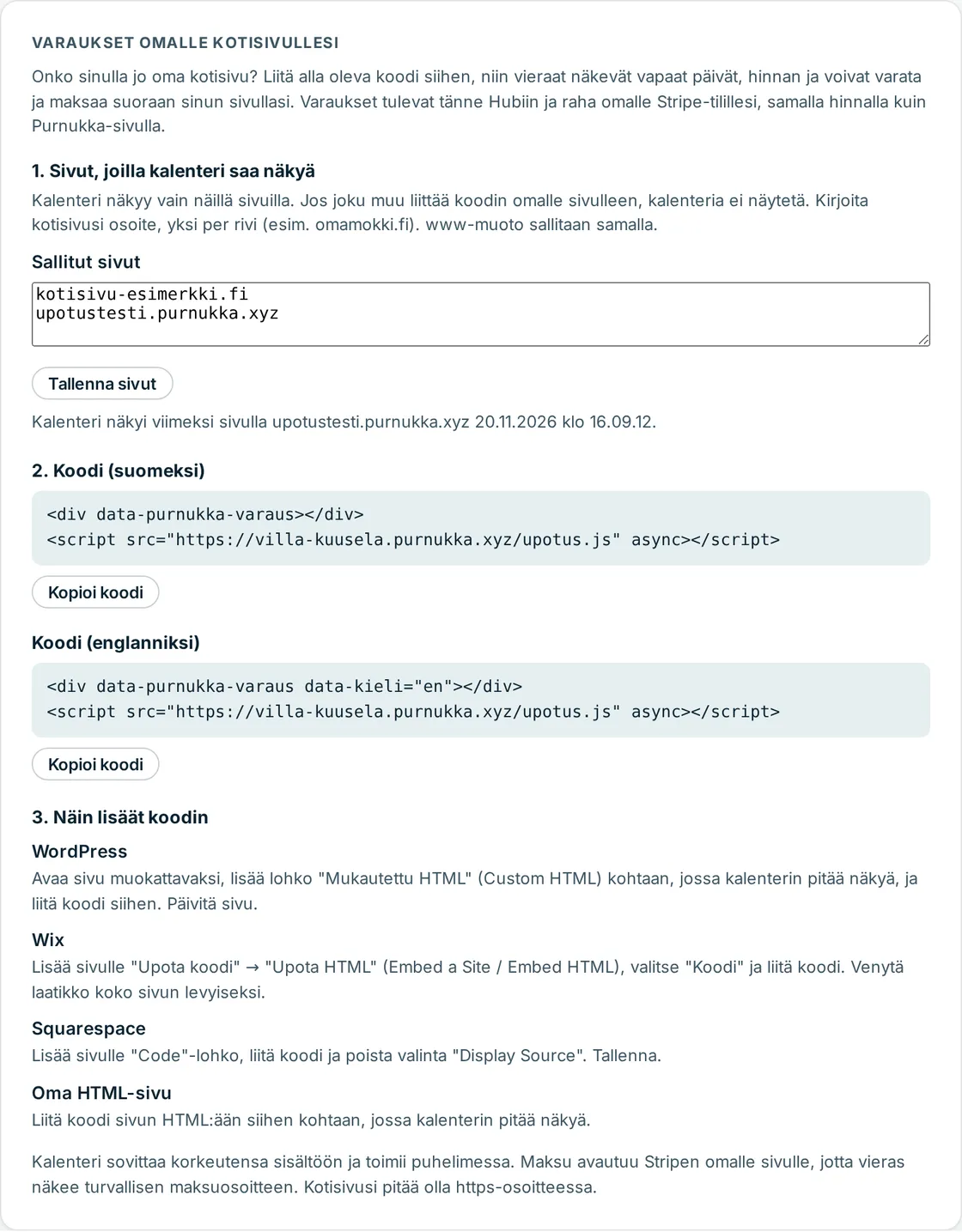
Sign in to Hub and choose Properties → your property → Public site. Scroll to Bookings on your own website.
-
Tell Hub where the calendar may appear
Enter your website address in Allowed websites, for example
mycabin.fi, and press Save websites. Several sites: one per line. The www form of the same address is allowed automatically.The calendar only shows on these websites. If someone else copies your code onto their site, it is replaced with "Booking is not enabled on this page".
-
Copy the code
Press Copy code. Choose the Finnish or English calendar to match your site. The code is two lines (the address is your property’s):
<div data-purnukka-varaus data-kieli="en"></div> <script src="https://yourproperty.purnukka.com/upotus.js" async></script> -
Paste the code into your website
WordPress
- Open the page where you want the calendar and choose Edit.
- Press the + button at the top left and search for Custom HTML. Add the block where the calendar should appear.
- Paste the code into the block and press Update or Save.
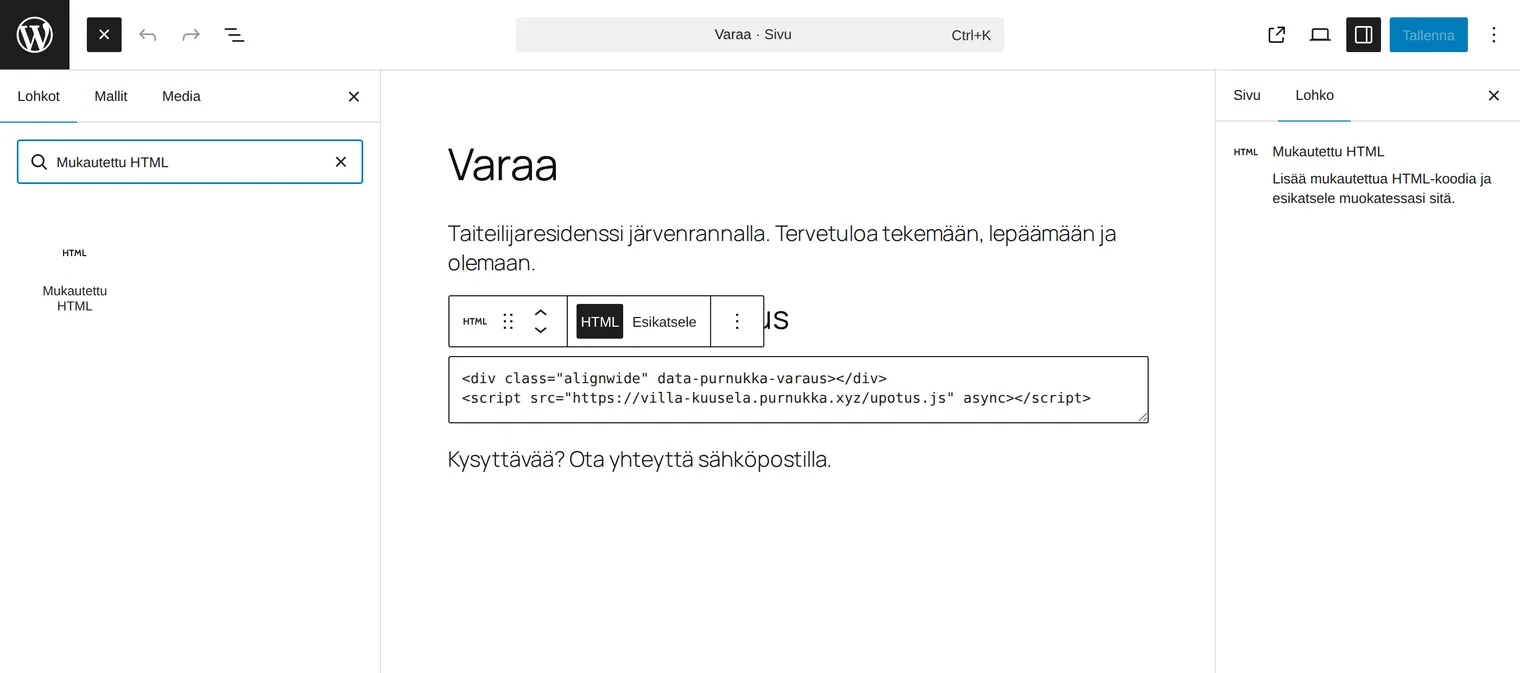
Searching for the block (Finnish WordPress). 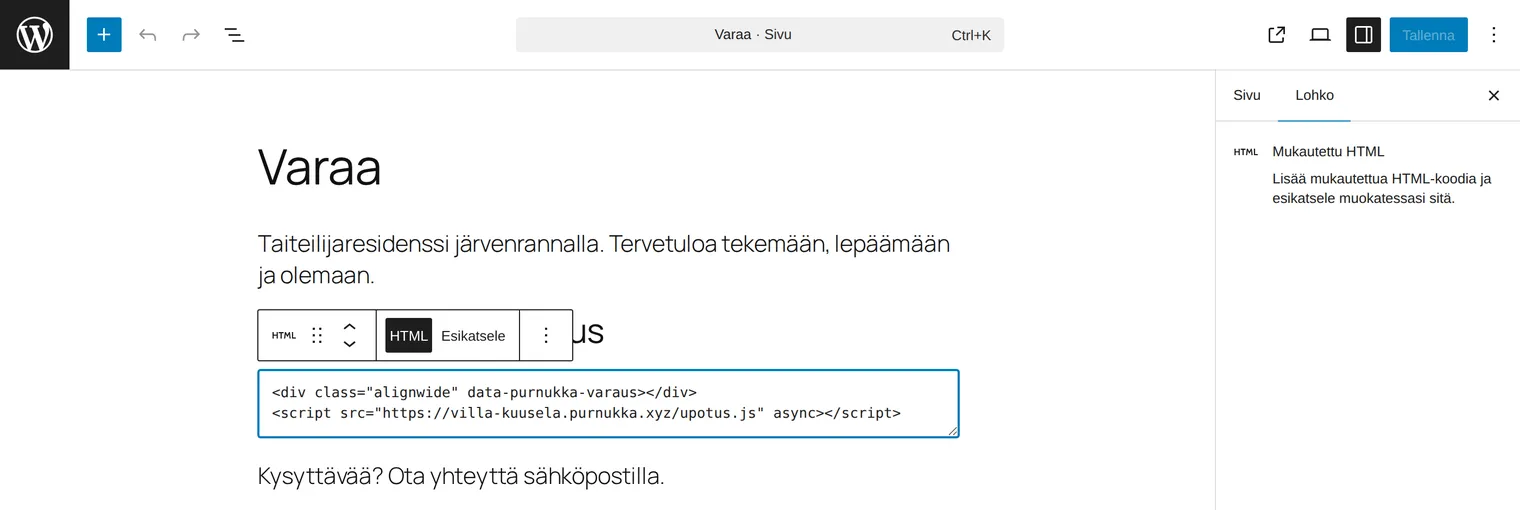
The code in the block. Tip: if your theme shows the calendar in a narrow text column, add
class="alignwide"to the first line:<div class="alignwide" data-purnukka-varaus></div>. Most themes then give it more width.WixAdd → Embed Code → Embed HTML, choose Code and paste. Stretch the box to full width and tall enough.SquarespaceAdd a Code block, paste the code and untick Display Source.Any other sitePaste the code into the page HTML where the calendar should appear. -
Check that the calendar shows
Open your website on a computer and a phone. Once the calendar has shown, the Hub card says "The calendar last showed on …".
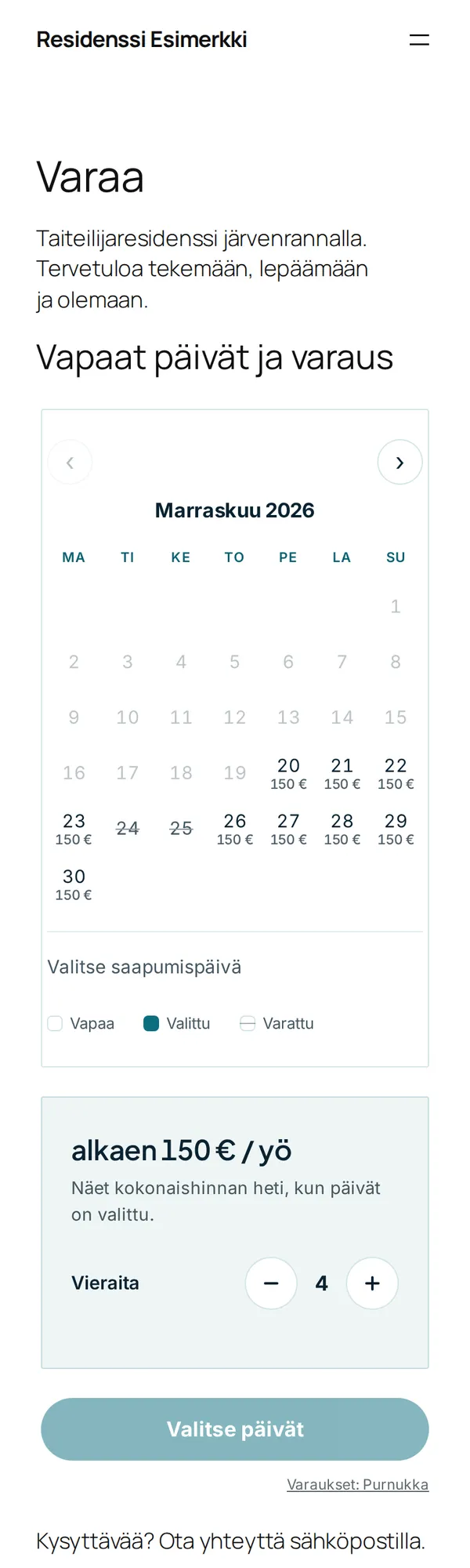
How a guest books on your site
- Picks the dates and sees the total price right away.
- Chooses guests and add-ons and enters contact details.
- Pays on Stripe’s payment page by card, MobilePay or Klarna. Apple Pay and Google Pay show when the device supports them.
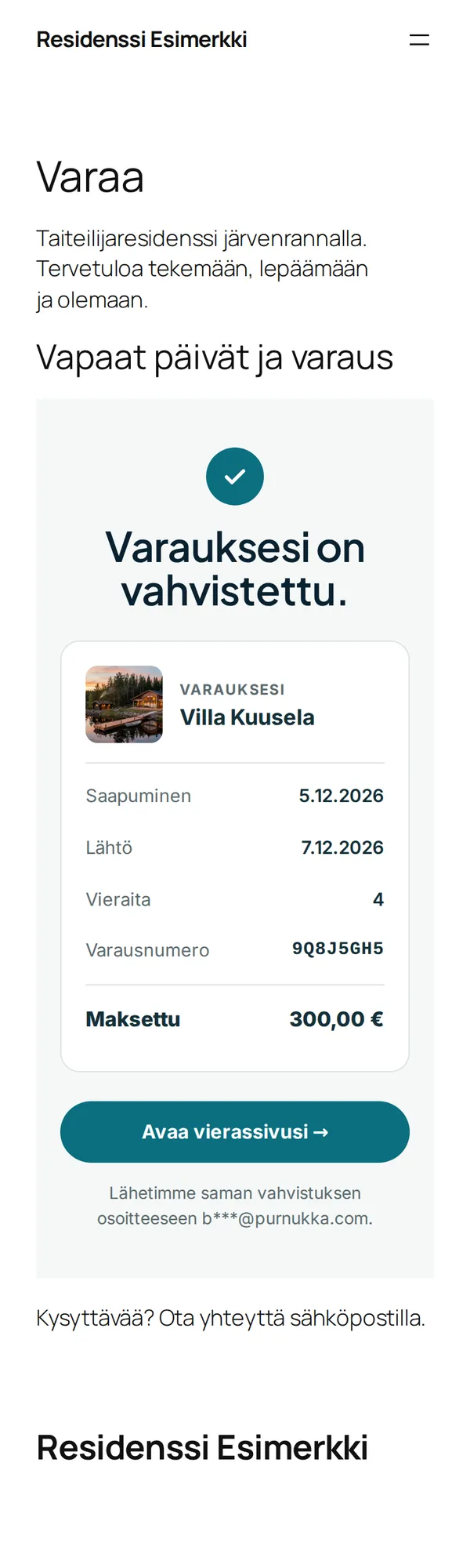
- Returns to your website, where the booking confirmation shows in place of the calendar. The same confirmation arrives by email.
- The booking shows in Hub like any other.
Questions
The calendar says "Booking is not enabled on this page".
The page address is missing from the allowed websites. Add it in Hub under Allowed websites (step 2) and reload your site.
The calendar does not show at all.
Check that you pasted both lines and that they are in a Custom HTML block, not a normal text block. On some WordPress installs a caching plugin needs to be cleared after the change.
Can I add the calendar to several pages?
Yes. Paste the same code on each page. If the pages are on different addresses, add each address to the allowed websites.
Do prices and booked dates update?
Yes. The calendar reads from Hub every time the page opens. A change in Hub shows right away on your website and on your Purnukka site. Airbnb and Booking.com calendars update about once an hour.
Does my website’s look change?
No. The calendar is its own box inside the page and does not touch your theme or other content. Its colours come from your Purnukka site’s look.
Does the embed cost extra?
No. The price is the same as on your Purnukka site: no monthly fee, 3.5% of paid bookings.
If something does not work, write to us from the Support page in Hub and include your website address.